AI image extender for wider photos

Turn a tight crop into a wider scene. Extend the background, try a new format and give your subject room to breathe.

Landscapes — Original cropOriginal crop
Landscapes — Expanded viewExpanded view

or drop an image here
JPEG, PNG, WebP

Expand photos for a new layout

From scenic banners to product displays, see how a wider frame can give a photo a new purpose.

Give a landscape room to breathe — Original cropOriginal crop
Give a landscape room to breathe — Expanded viewExpanded view

Give a landscape room to breathe

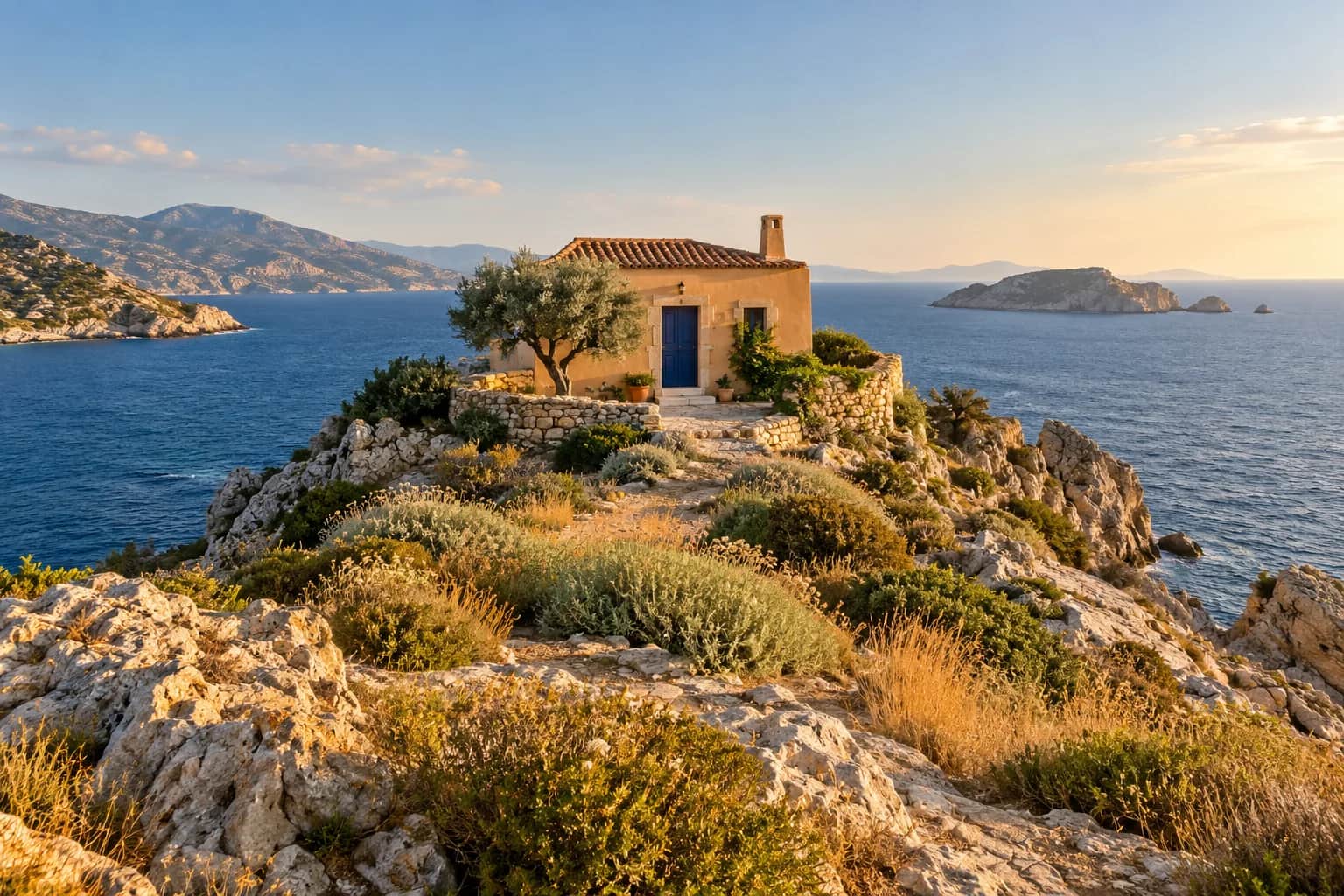
A tight crop can leave a beautiful scene feeling cut short. Extend the coast, sky or surrounding scenery to make space for a wider composition. Use the extra room for a travel banner, a cover image or a more open view of the place.

Make space around your subject — Original cropOriginal crop
Make space around your subject — Expanded viewExpanded view

Make space around your subject

Keep your portrait as the starting point and add more of its surroundings. Create room beside the subject for a headline, or open up the frame for a different cover format. Move the photo on the canvas to choose where the new space appears.

Give your product a new setting — Original cropOriginal crop
Give your product a new setting — Expanded viewExpanded view

Give your product a new setting

A product photo does not have to stay in its original format. Continue the tabletop and background to create breathing room for a shop banner, a square post or a campaign layout. Keep the product in the position that works for your design.

Give food photos a place on the menu — Original cropOriginal crop
Give food photos a place on the menu — Expanded viewExpanded view

Give food photos a place on the menu

Turn a close-up of a dish into a wider table scene. Extend the surface around the plate to leave room for a menu heading or a social cover, while keeping the food at the center of the composition.

How to extend an image

Start with your photo. Choose the space you need. Let AI fill in the rest.

Choose your image

Open ImageExpander.ai and upload a JPEG, PNG or WebP photo; you can prepare the canvas before signing in.

Find the right frame

Choose a ratio, position the photo and optionally describe the background; check the credit cost, then generate.

Generate and download

Inspect the added edges and details, then download the result or reopen it from history to continue editing.

AI outpainting with room to compose

Use the AI image expander to add space around your subject and fit your photo to a new layout.

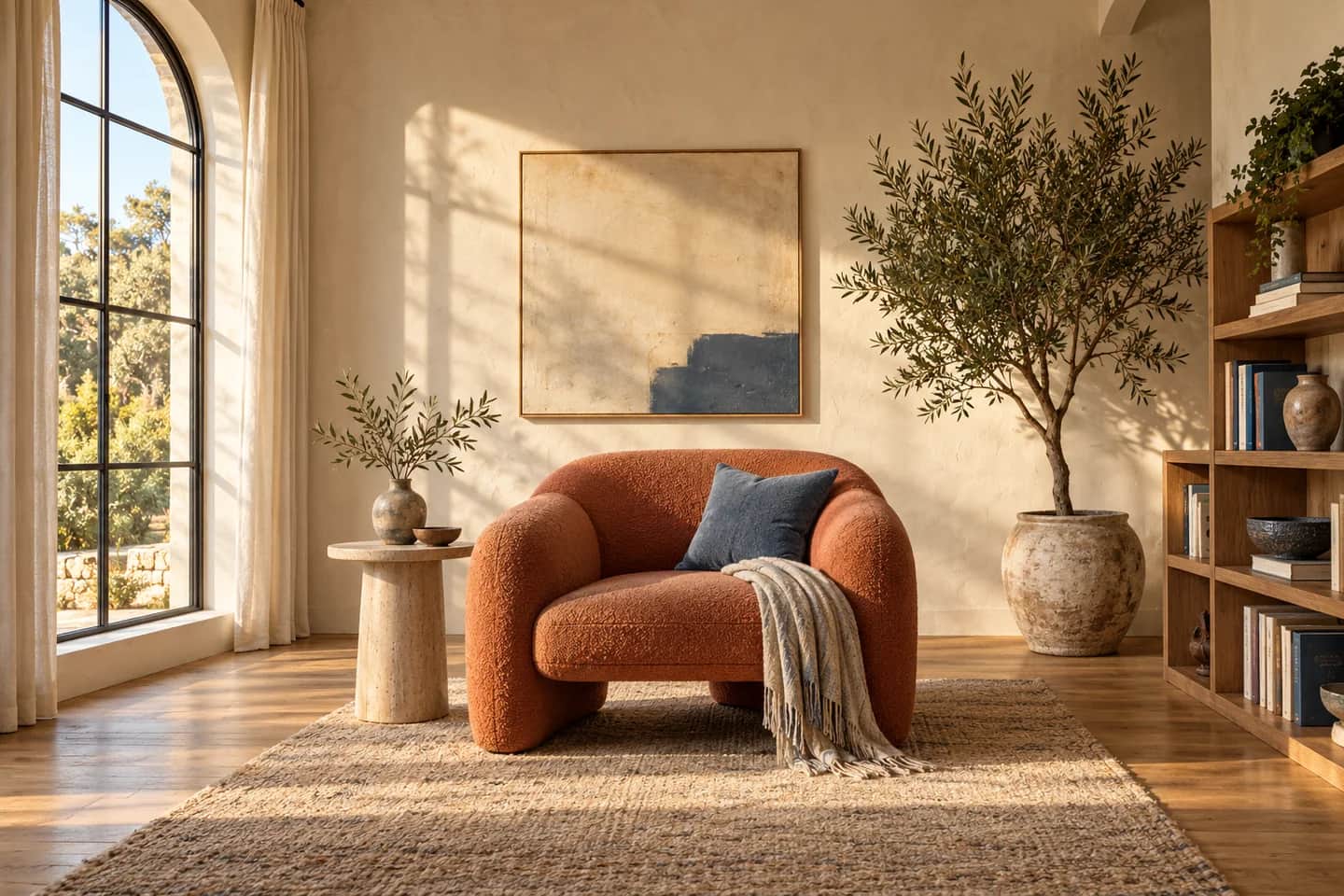
A reading corner shown as a tight crop and a wider room — Original cropOriginal crop
A reading corner shown as a tight crop and a wider room — Expanded viewExpanded view

Extend the background

AI outpainting uses the colors, lighting and textures visible in your photo to suggest what could continue beyond its borders. A wall, sky or tabletop can become a wider setting. Leave the prompt empty to follow the image, or describe the background you want to explore.

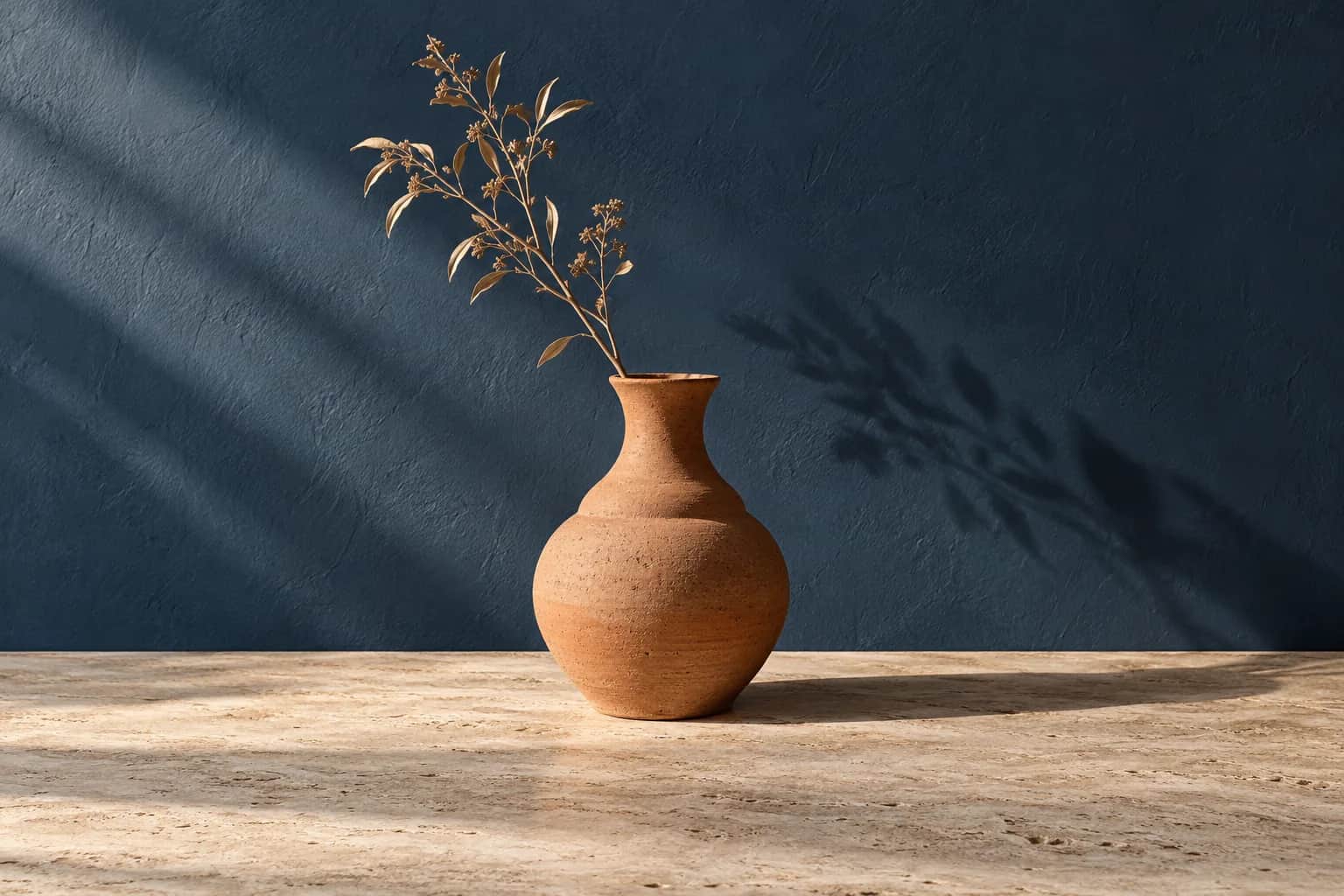
Blue ceramic vase with additional wall and tabletop space — Original cropOriginal crop
Blue ceramic vase with additional wall and tabletop space — Expanded viewExpanded view

Choose the canvas aspect ratio

Choose from seven aspect ratios, including square, portrait and widescreen. Move or resize the original within the canvas to place new space where your layout needs it. You can leave room beside a subject for a heading without squeezing the whole photo into a different shape.

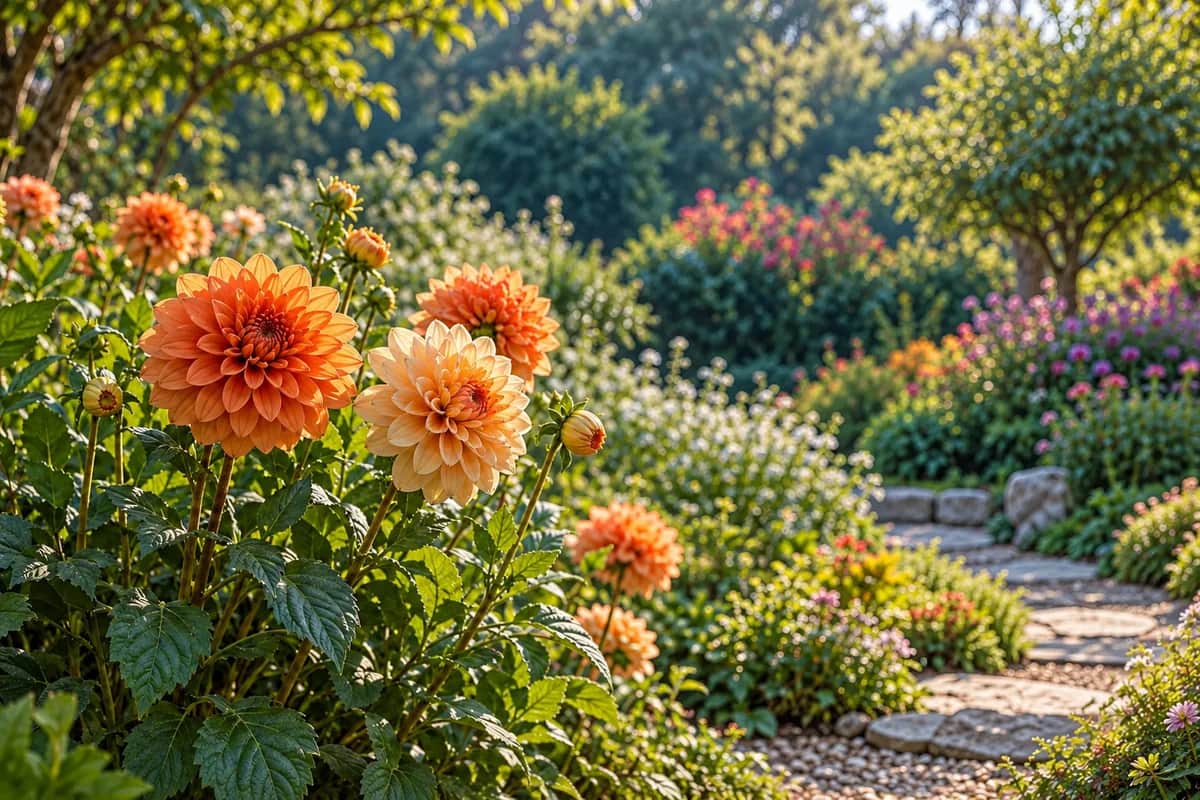
Orange dahlias and detailed leaves in a wider garden composition — Original cropOriginal crop
Orange dahlias and detailed leaves in a wider garden composition — Expanded viewExpanded view

Choose 1K or 2K output

Choose 1K or 2K quality for the expanded image, with dimensions shaped by your canvas ratio. Use a lower setting to explore a composition or a higher one for a larger layout. Review fine details before downloading; a higher setting does not recover the real scene outside the original frame.

AI image extender FAQ

Quick answers before you expand your first image.

What does an AI image extender do?

Expanding adds new scenery beyond the edges of your photo. Upscaling makes the existing image larger. Choose expansion when you need more room around a subject. AI creates a possible continuation of the photo; it cannot recover what was actually outside the frame.

Which photos work best for expansion?

Start with a clear photo whose edges show enough of the surrounding scene. Landscapes, portraits, product shots and food photos are useful starting points. Busy patterns, lettering, faces near the edge and strong perspective can be harder to continue. Keep the subject inside the canvas and check the new borders before publishing.

Which image formats and sizes can I upload?

The picker accepts JPEG, PNG and WebP. There is no fixed file-size or pixel-dimension cap enforced by this homepage picker; browser memory and the generation service can still limit processing. If a large image cannot open or generate, try a smaller copy. Keep your original file separately so you can return to it.

What resolution and file format can I download?

Generation offers 1K and 2K quality options, with the output size based on the canvas aspect ratio. A higher setting does not guarantee sharper recovered detail. Download completed results from the editor or export the current canvas as PNG. Inspect small text and the actual downloaded file before preparing it for print or publishing. Free accounts generate with a watermark; paid account entitlement removes it.

Do I need to sign in before editing?

You can choose an image and prepare your edit before signing in. Sign in when you are ready to generate. Refreshing the page clears edits you have not submitted, so keep your original image.

Is ImageExpander.ai free, and what does expansion cost?

New accounts receive 5 trial credits, valid for 30 days. Each expansion creates one image: 1K costs 3 credits and 2K costs 4. Selecting and arranging a photo does not use credits. Review the cost before generating again, and see Pricing in the footer for current one-time credit packages.

How are my photos stored and deleted?

Images are uploaded for processing when you submit a generation after signing in. You can manage or delete results in your account history. Download anything you want to keep; see the Privacy Policy for storage and deletion details.

What if generation fails or the result looks wrong?

Failed generation returns the credits used for that task. For a completed image that needs work, try a smaller expansion, move the original or describe the background more clearly; another generation uses credits again. Inspect joins, faces and repeated patterns. Contact [email protected] with task details for stuck tasks or credit issues. Purchase refunds follow the Refund Policy.

Give your photo more room

Extend the background and find a frame that fits your next layout.